Your first buying plan, step by step
No technical knowledge needed. Restock Pilot helps you decide what to buy; it never places an order or changes Shopify stock.
1. Bring in your store data
Open Restock Pilot from Shopify → Apps. Choose a plan in Plans & billing first. Free supports 50 active variants, Starter supports 500 and Growth supports 2,000. All plans include the same planning tools and support up to 5,000 orders per 30-day window. Select Import Shopify data. Wait for the success message. The app reads active, inventory-tracked products and the last 30 complete days of orders. Use Refresh store data before each buying session.
2. Tell the app how much you can spend
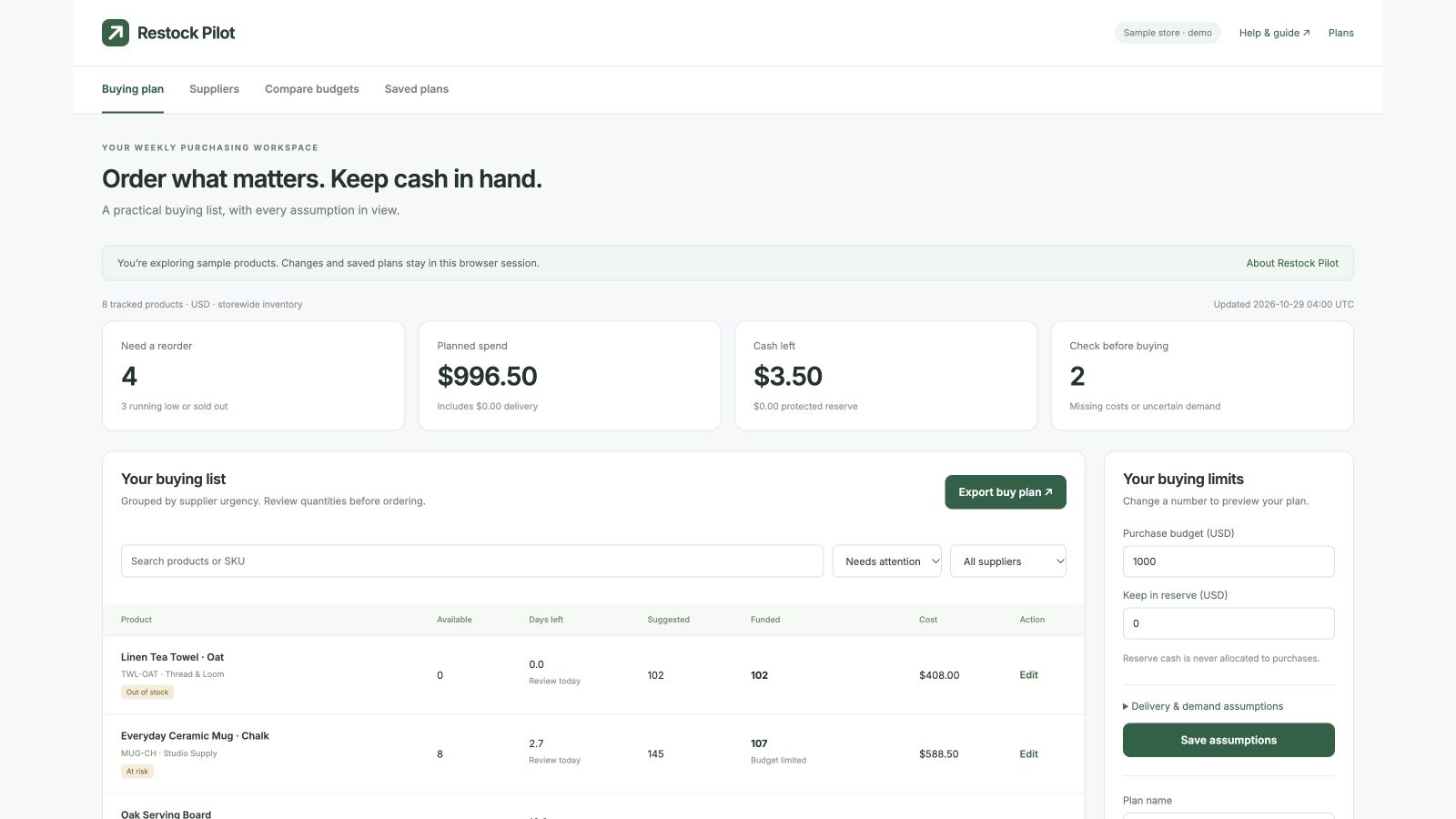
On Buying plan, enter your Purchase budget. If you want to protect money for rent, ads or other expenses, enter Keep in reserve. For example: a $500 budget with $100 reserved lets the planner use at most $400, including supplier delivery fees.
3. Set delivery expectations
Open Delivery & demand assumptions. Supplier lead time is how many days you expect delivery to take. Safety buffer adds extra days of stock. Extra target cover is how much longer you want the new stock to last. Leave Expected demand multiplier at 1 unless you have a reason to expect a change.
4. Check the products that need attention
Available is your storewide Shopify stock. Days left estimates how long that stock lasts at the assumed demand. Suggested is the amount needed before the budget is applied. Funded is the amount that fits the current budget and supplier rules. A dash means no quantity is funded.
5. Fix missing information
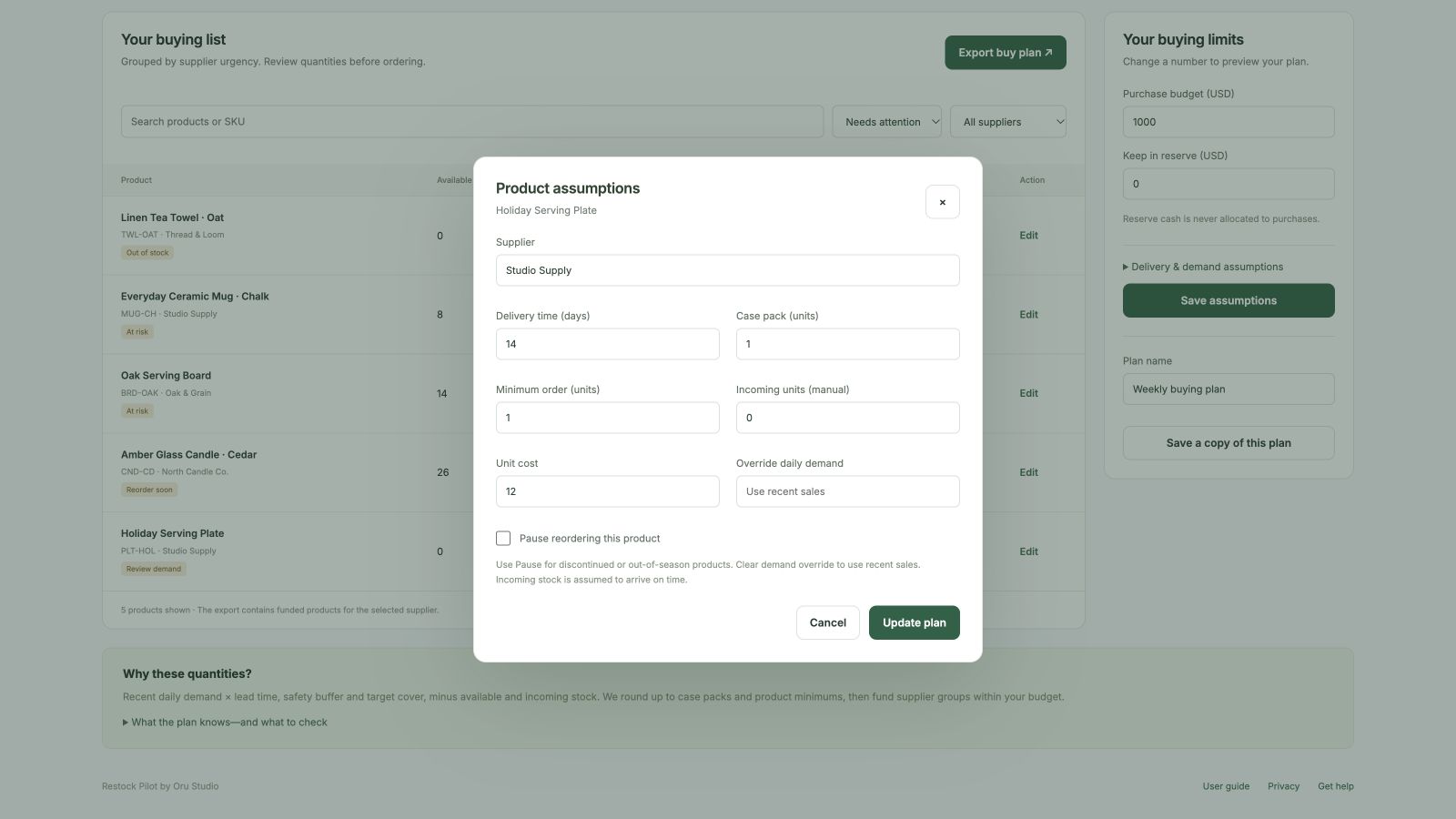
Choose Edit next to a product. Enter its supplier, unit cost, delivery time, case pack and minimum order quantity. Case pack means the supplier sells in groups—for example, packs of 6. Incoming units are products you have already ordered and expect on time; update this number yourself as deliveries arrive.
If a product sold out weeks ago, it may have no recent sales. It stays visible under Needs review. Enter an expected daily demand based on your own knowledge. Clear that override to return to recent sales. Pause reordering for discontinued or out-of-season items.
6. Add supplier charges
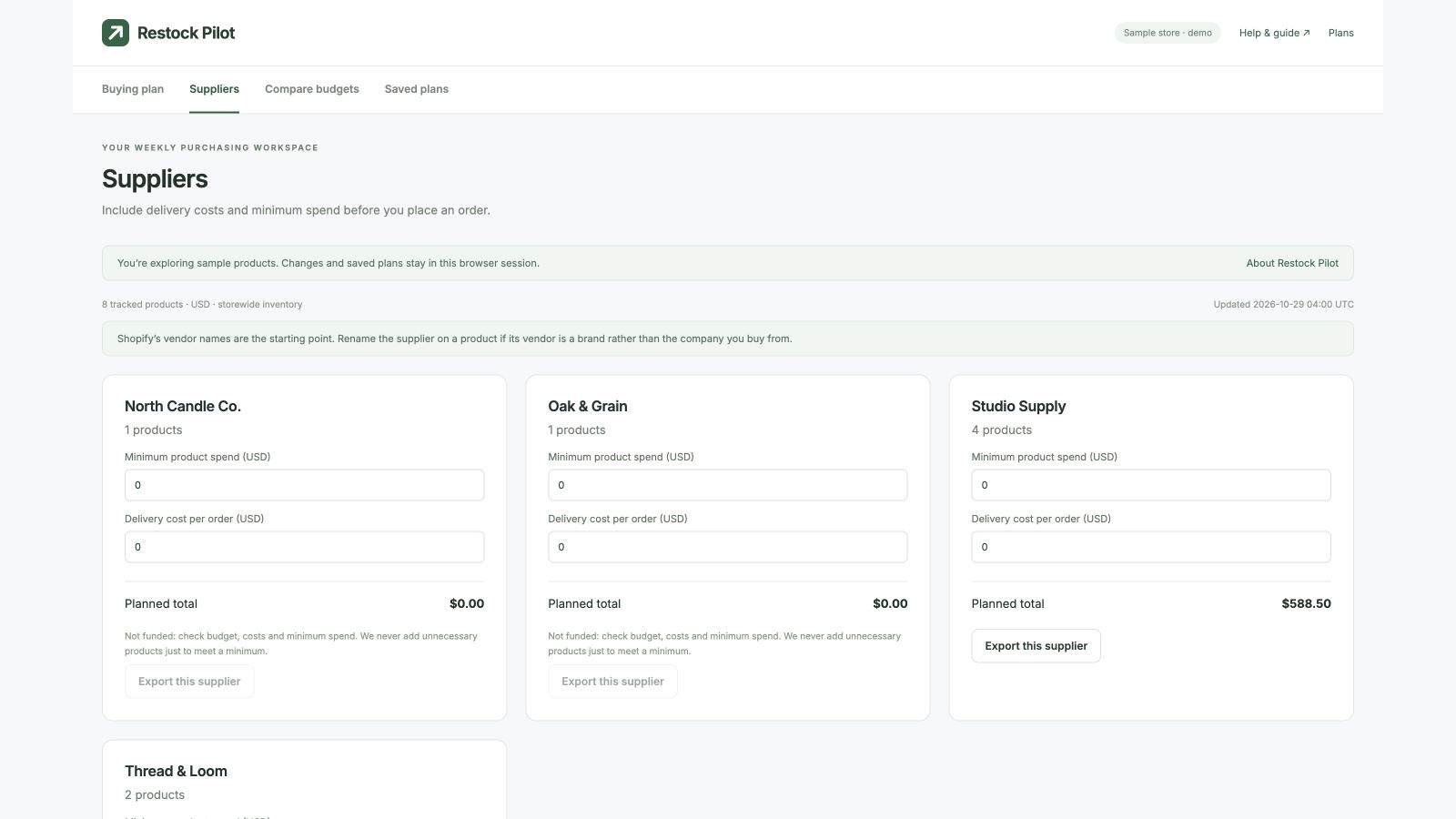
Open Suppliers. Enter the minimum product spend and delivery charge for each supplier. If the planned product spend cannot reach the supplier minimum within your budget, that supplier is not funded. We do not add unnecessary products to reach a minimum. Choose Save supplier terms.
7. Compare budgets
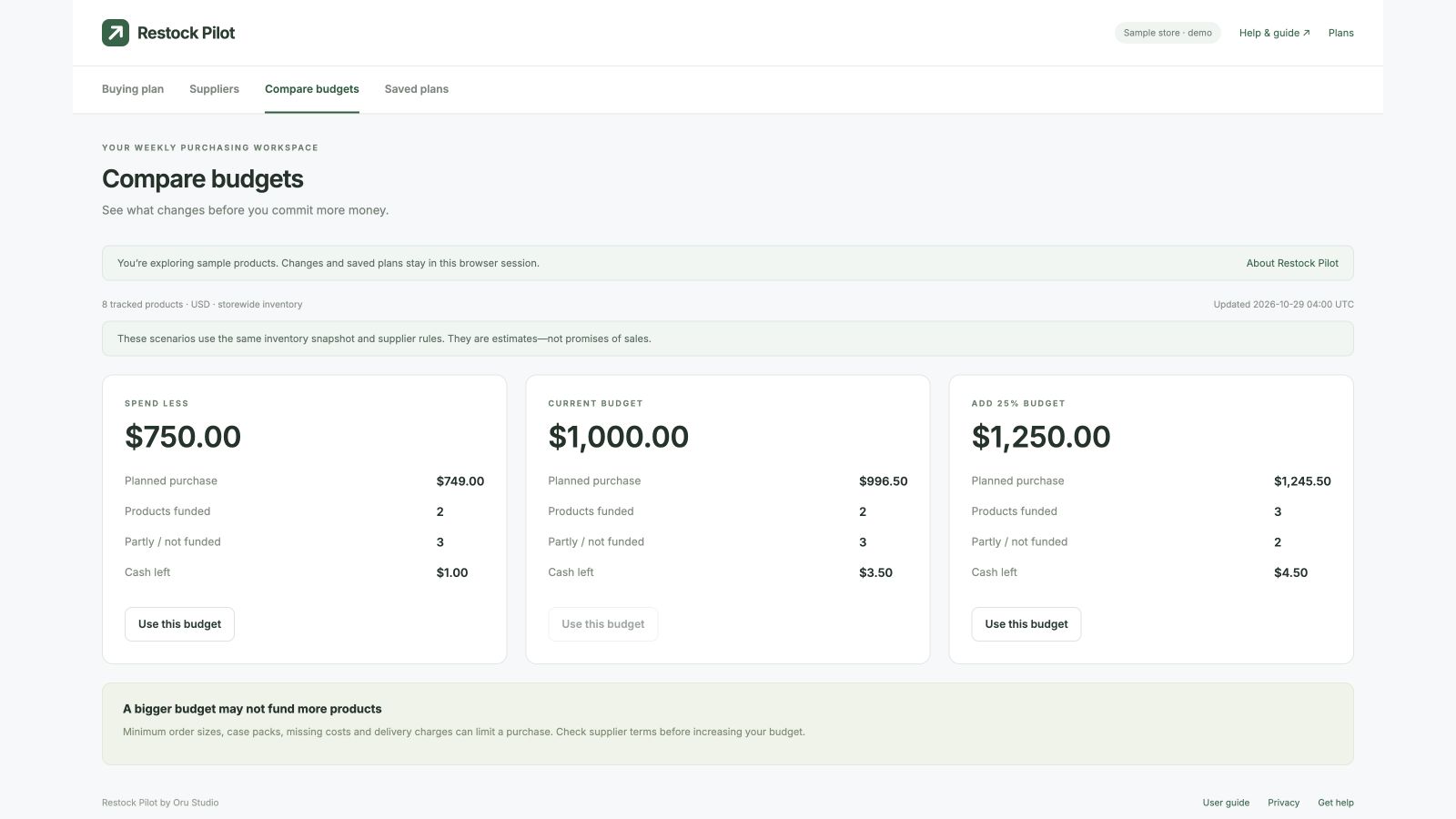
Compare budgets shows 25% less, your current budget and 25% more. Look at products funded and cash left. Choose Use this budget to apply a scenario, then review the buying list and save your changes.
8. Save and export
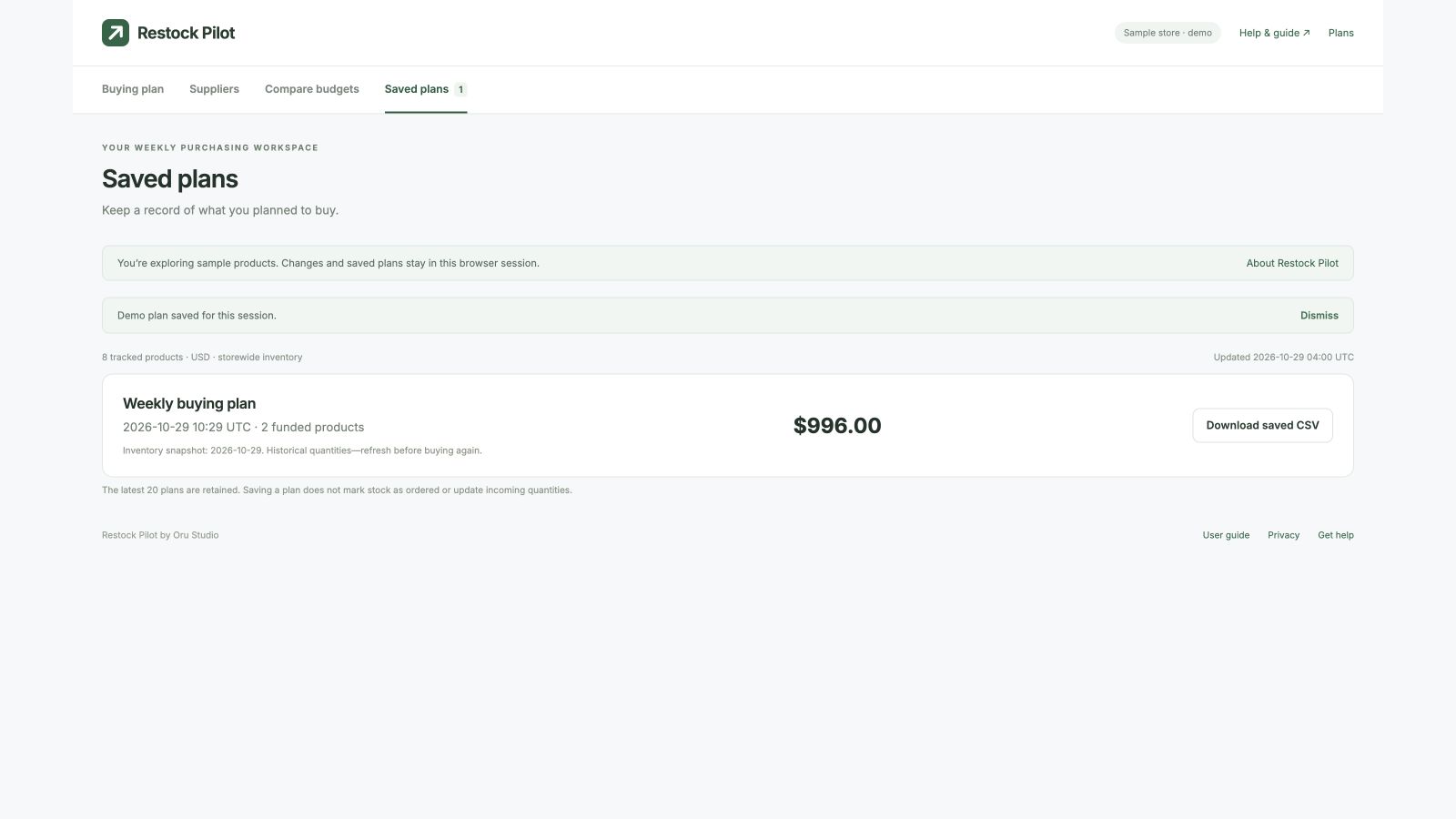
Select Save assumptions to keep your settings. Enter a plan name and select Save a copy of this plan to keep a historical record. The newest 20 plans are retained. Choose Export buy plan for a CSV file you can open in Excel or Google Sheets. To export one supplier, use the supplier filter or the Suppliers tab.
The CSV includes funded quantities, unit costs and a supplier totals section with delivery charges. Review it and place orders through your usual supplier process. Saving or exporting does not notify suppliers or update incoming stock.
Understanding the status labels
| Label | What to do |
|---|---|
| Out of stock | Review demand and delivery time before buying. |
| At risk | Stock may run out before the supplier delivers. |
| Reorder soon | The product has reached your reorder threshold. |
| Review demand | Recent sales are zero. Check whether the item was unavailable or seasonal. |
| Paused | Reordering is disabled until you uncheck Pause in Edit. |
| Healthy | No reorder is suggested under the current assumptions. |
Common questions
Why isn’t a product funded?
Check its cost, your remaining budget, reserve, case pack, product minimum and supplier minimum. An unknown cost cannot be funded.
Why does a supplier change the order priority?
The app groups purchases by supplier to account for delivery charges once. Supplier groups are ordered by their most urgent product; products inside them are ordered by stock cover.
Why is a saved plan different from today’s plan?
Saved plans are historical copies. New sales, stock, costs or assumptions can change today’s suggestions. Refresh before placing a new order.
Does this work per warehouse?
This version uses storewide stock. It does not recommend transfers or detect shortages hidden by inventory in another location.
What does the app not predict?
It does not model seasonality, past stockout days, manufacturing components or expiry dates. Taxes are not included. Use your own judgment and verify supplier details.
Need help?
Email naimkst@gmail.com with your shop domain, the action you tried and the error message. Never send passwords or API tokens.